
TDS Reconciliation
Drop in Form 26AS and your TDS receivable ledger — grouped and compared by TAN, section, and quarter, the way real TDS reconciliation actually works.
How it works
- Drop in Form 26AS — any CSV or Excel export.
- Drop in your TDS receivable ledger — same flexible column-matching as the other reconciliation tools here.
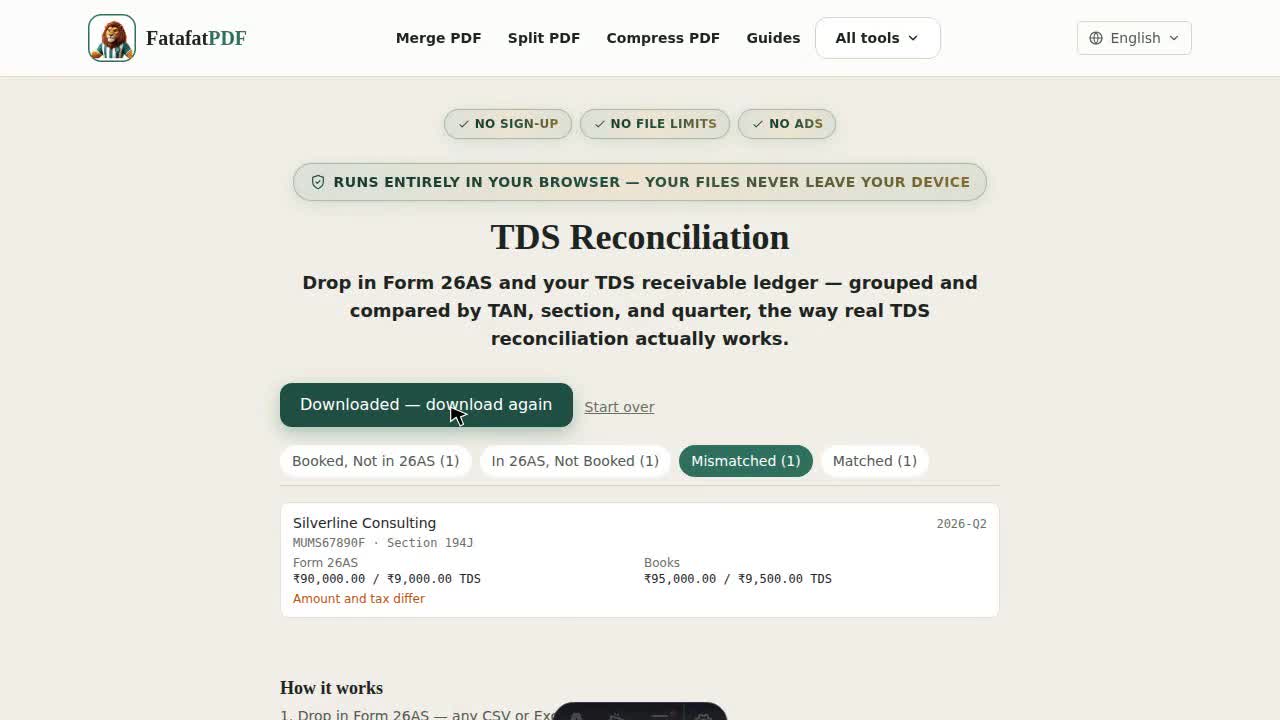
- Both sides are grouped by TAN, section, and quarter, and the amounts in each group are summed and compared.
- Download a full reconciliation report as an Excel workbook.
Why does this group entries instead of matching them one by one?
A TDS entry has no equivalent of an invoice number — Form 26AS's own certificate number isn't something books independently record at transaction time, and your ledger can carry several smaller entries against one deductor for a quarter where 26AS shows a single combined row. Grouping both sides by TAN + Section + Quarter and comparing the summed amounts is how TDS reconciliation is actually done in practice, not a line-by-line match.
What if my file has a transaction date instead of a Quarter column?
This tool derives the Indian financial-year quarter directly from the date — no need to pre-compute or add a Quarter column yourself.
What does "Booked, Not in 26AS" mean, and why does it matter?
It means you've booked TDS receivable for a TAN/section/quarter that Form 26AS has no entry for — usually because the deductor hasn't filed their TDS return yet. Credit claimed with no 26AS backing is exactly what gets questioned at assessment, so this is usually the most important category to review first.
Do I need to download Form 26AS in a specific format?
Any CSV or Excel export works — the tool auto-detects columns like TAN, Section, Quarter or Date, Amount Paid, and Tax Deducted, with a column-matching step if it can't be detected automatically.
Is my TDS data uploaded anywhere?
No — every file you drop in is parsed and matched entirely in your browser using JavaScript. Nothing about your deductors, TANs, or amounts is ever sent to a server.